

Overview
Friday can send messages and search conversation history in Slack. To enable these capabilities you must connect the Slack integration to your account. The connection is a one-time OAuth authorization; after it’s set up Friday will use the Slack integration automatically whenever a task requires it.Prerequisites
- A Slack workspace where you have permission to install apps (usually an admin or owner role).
- Access to the Slack “Apps” directory for the workspace.
Step-by-step guide
Friday will automatically detect when you need to connect to your integrations as part of your regular use.Start with a real Slack request
To connect Slack, you first need to ask Friday to do something that involves Slack. This gives Friday the context it needs to request access and complete the setup.Example prompts:
- “Send a reminder in #team-updates every Monday at 9am to post weekly priorities.”
- “Post a summary in #sales every Friday afternoon of this week’s CRM updates.”
- “Send me a direct message on Slack every morning with my calendar summary.”
Start the OAuth flow
If you haven’t authenticated into Slack previously, Friday will automatically detect that you need to go through a one-time OAuth flow.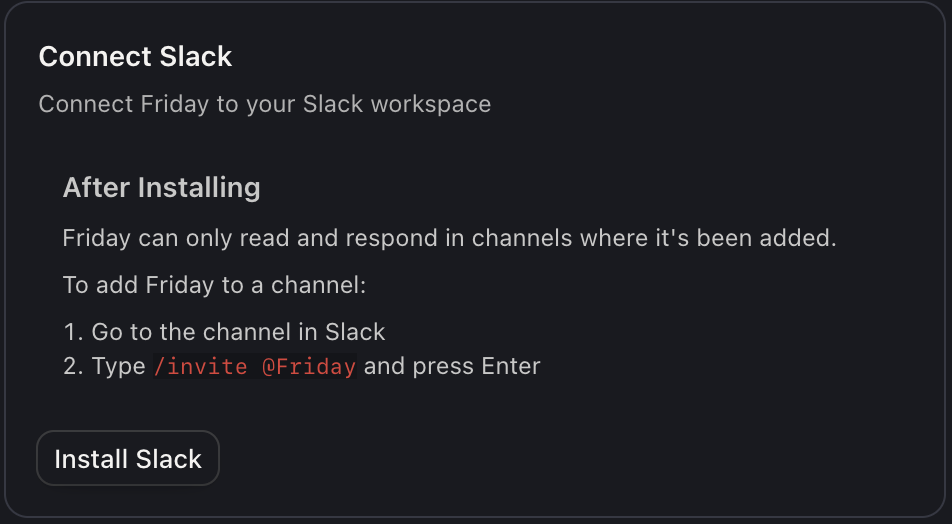
- Click Install Slack.
- You’ll be redirected to Slack’s authorization page.
Authorize Friday
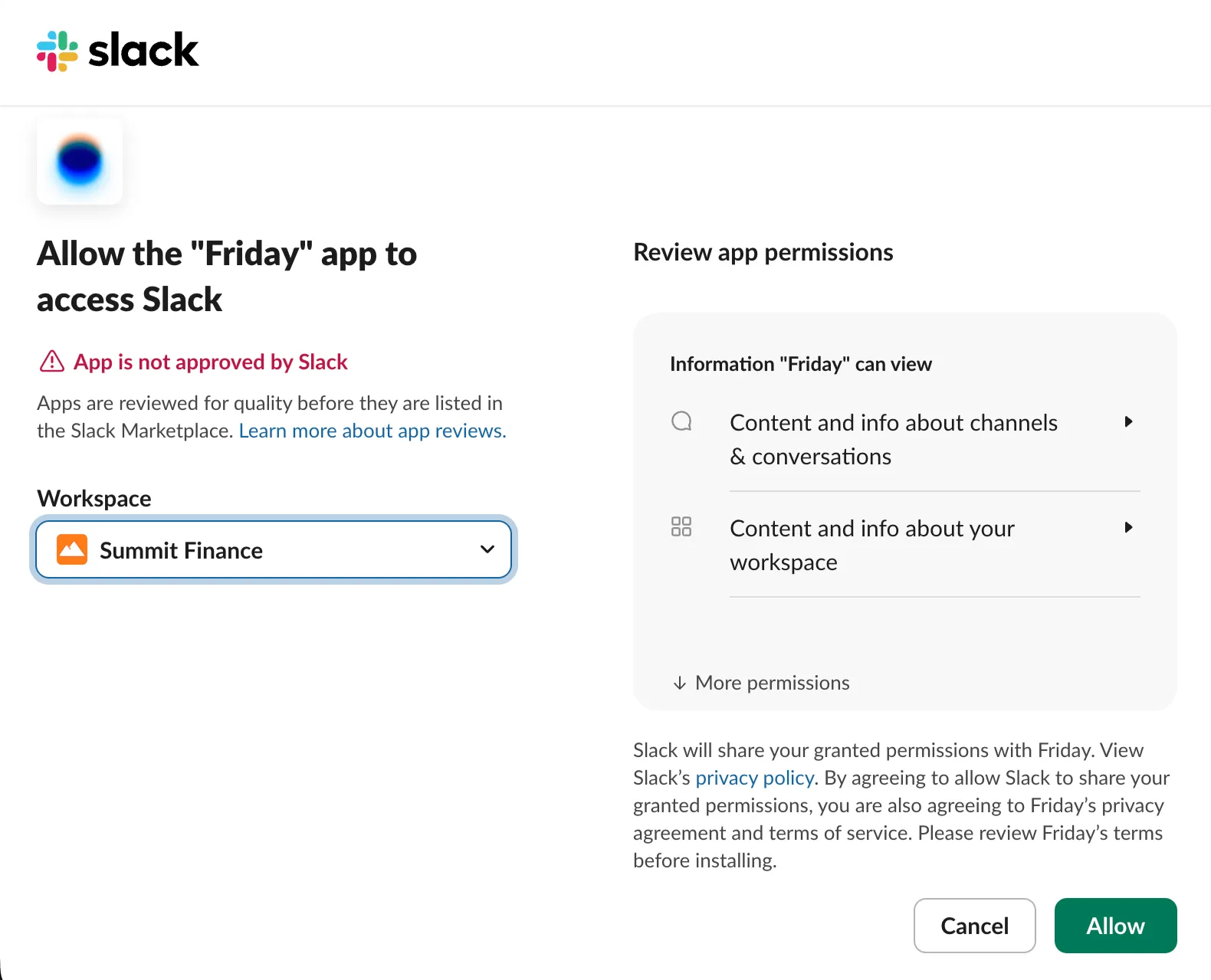
- Review the permissions requested (e.g., posting messages, reading channel history).
- Click Allow to grant the permissions.
- Slack will return you to Friday with a confirmation that the connection succeeded.
Add the Friday Slack bot to channels
Friday can only read and respond in channels where it’s been added.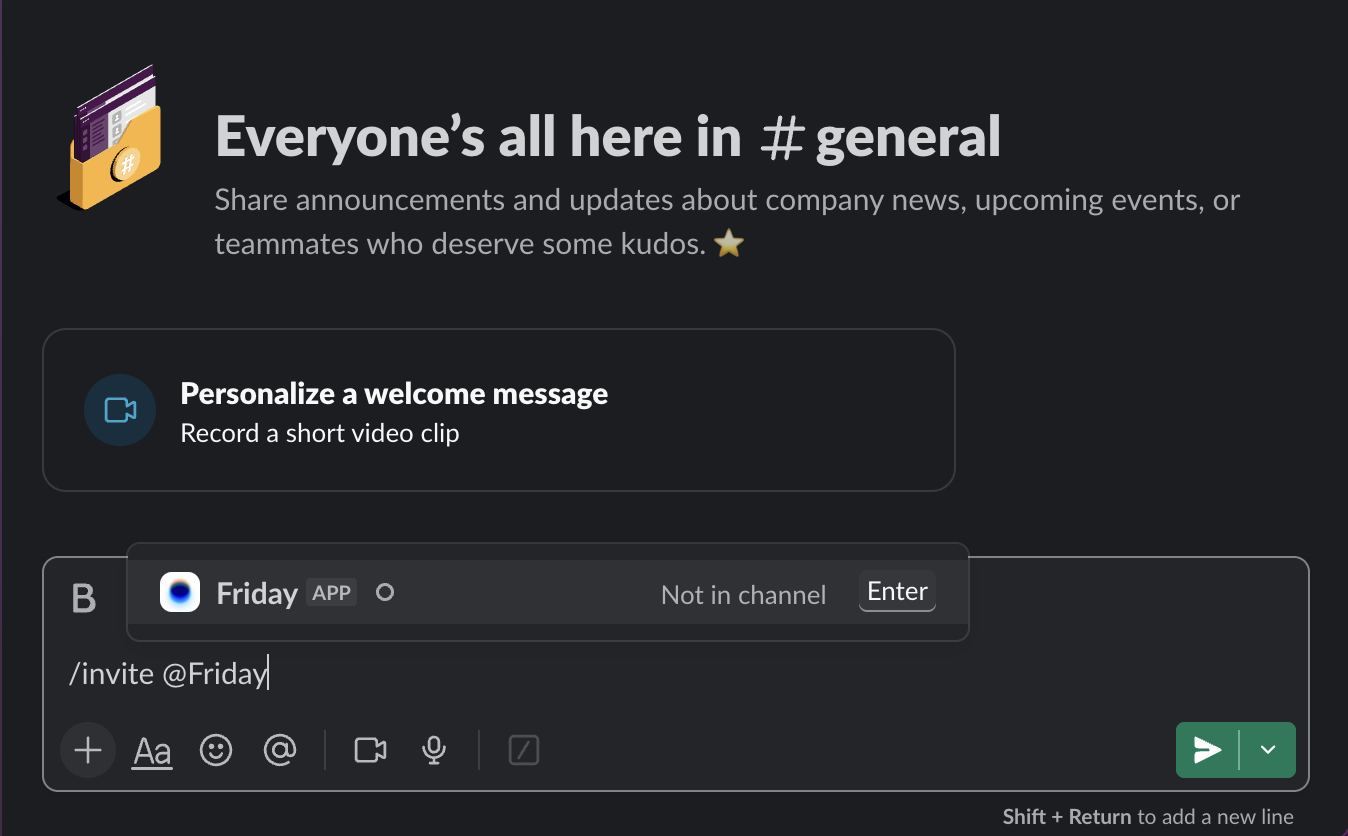
- Go to the channel(s) that you would like Friday to interact with.
- Type in
/invite @Friday
Security and permissions
- Friday stores the OAuth token securely; the raw token is never exposed to you.
- The bot requests only the it needs: posting messages (
chat:write), reading channel and direct message history (channels:history,groups:history,im:history,mpim:history), reading channel and user info (channels:read,groups:read,im:read,mpim:read,users:read), responding to mentions (app_mentions:read), and opening direct messages (im:write,mpim:write). - Revoking the app in Slack automatically disables the integration; you’ll need to reconnect to restore functionality.
Revoking access
Note: By revoking access, any current and future Spaces set up with Friday will no longer be able to use Slack until you reconnect.- In Friday, go to Settings → Integrations.
- Find the Slack app and click Remove.
- In Slack, go to Settings → Manage apps.
- Find the Friday app and click Remove App.
Next steps
Capabilities and Integrations
See the full list of what Friday can connect to
Troubleshooting
Solutions for common integration issues