

Access
Open http://localhost:15200 in your browser. The sidebar shows a green health dot when connected to the Friday daemon.Spaces
Space dashboard
When you select a space from the sidebar, the dashboard shows two tabs: Activity and Info. Activity shows your chat history for the space and recent job runs. Each run shows its status, what triggered it, a summary of what happened, and how long it took. A green dot indicates a run still in progress.


Add a space
Click Discover Spaces in the sidebar to browse and import starter spaces from the library. To load your own, click + and drop in aworkspace.yml file.
Edit configuration
Click Edit Configuration to open a full-page YAML editor with syntax highlighting. Press Cmd+S (Ctrl+S on Windows) or click Save to apply changes.Runs
Run list
Click Runs in the sidebar for any space to see all executions. Each card shows the job name, status, a summary of what happened, and duration.Run detail
Click any run to open the full execution view — a vertical timeline of every agent that ran, with duration shown per step. Click any agent block to expand it and see the full input, output, and any tool calls it made. The right sidebar shows the run ID, status, start time, duration, and step count.
Jobs
The Info tab shows all jobs in the space. Each job card displays its description and a Run button. Click Run to trigger it — a dialog appears with any input fields defined by the signal’s schema.
- Copy as cURL — a ready-to-paste curl command to trigger the job
- Copy CLI command — the equivalent
friday signal triggercommand - Edit configuration — jumps to the YAML editor at the relevant section
Skills browser
Browse and manage published skills from Skills in the sidebar. The left panel shows skills organized by namespace. Click any skill to view its full content on the right. Drag and drop aSKILL.md or skill folder onto the upload zone to publish a new skill.

Backup and restore
The Studio packs spaces as portable zip bundles you can re-import on any machine running Friday. Imports are non-destructive — collisions are suffixed with a timestamp so you can merge manually.Export a single space
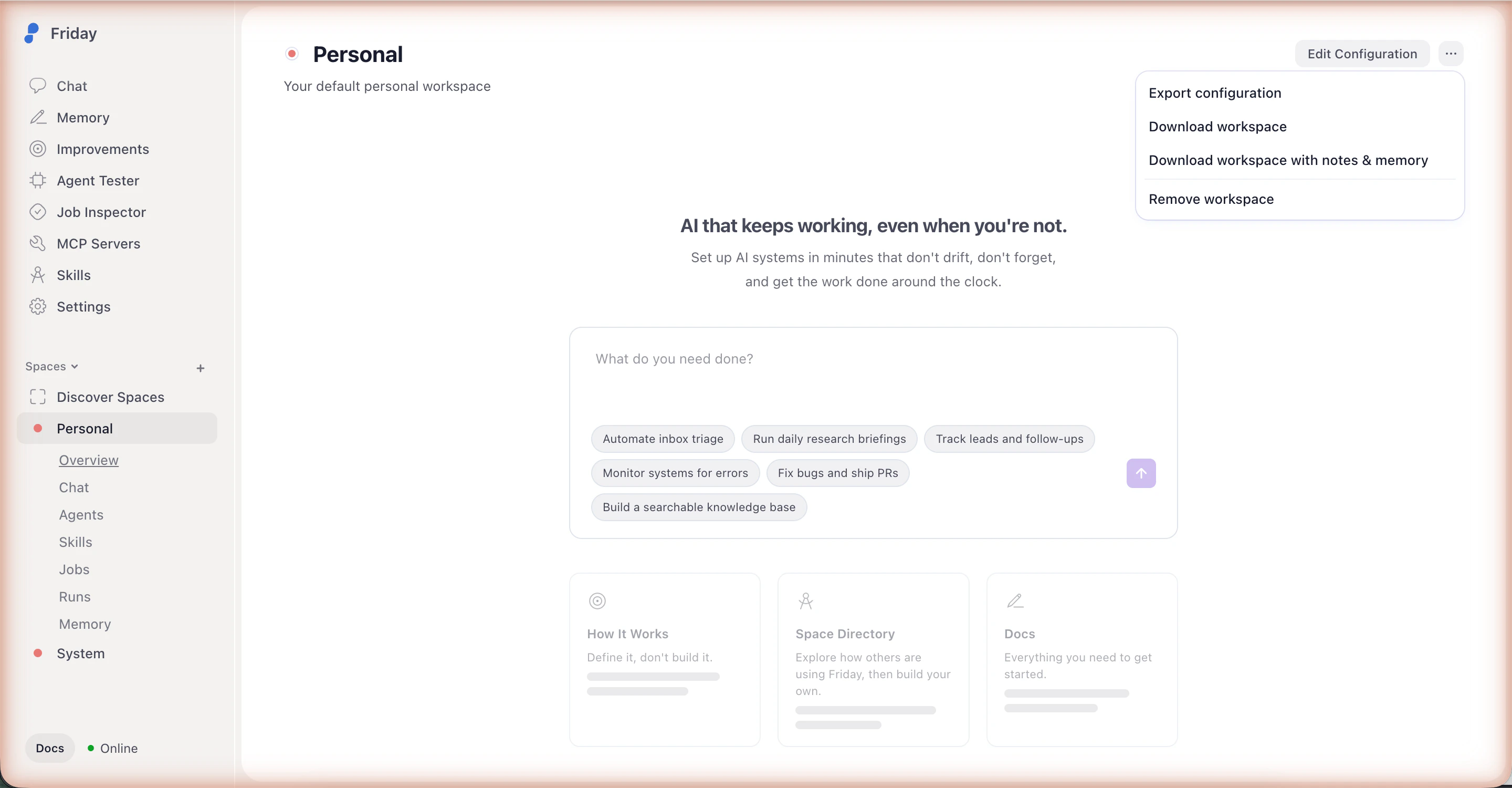
Open any space and click the ··· menu in the top right:- Export configuration — just the
workspace.yml - Download space — configuration plus run history and attached skills. Memory not included.
- Download space with notes & memory — same, plus the space’s narrative memory
Export your whole instance
Open Settings → Backup & restore → Download full export to pack every space into a single archive. Toggles let you include notes & memory and the global skills library.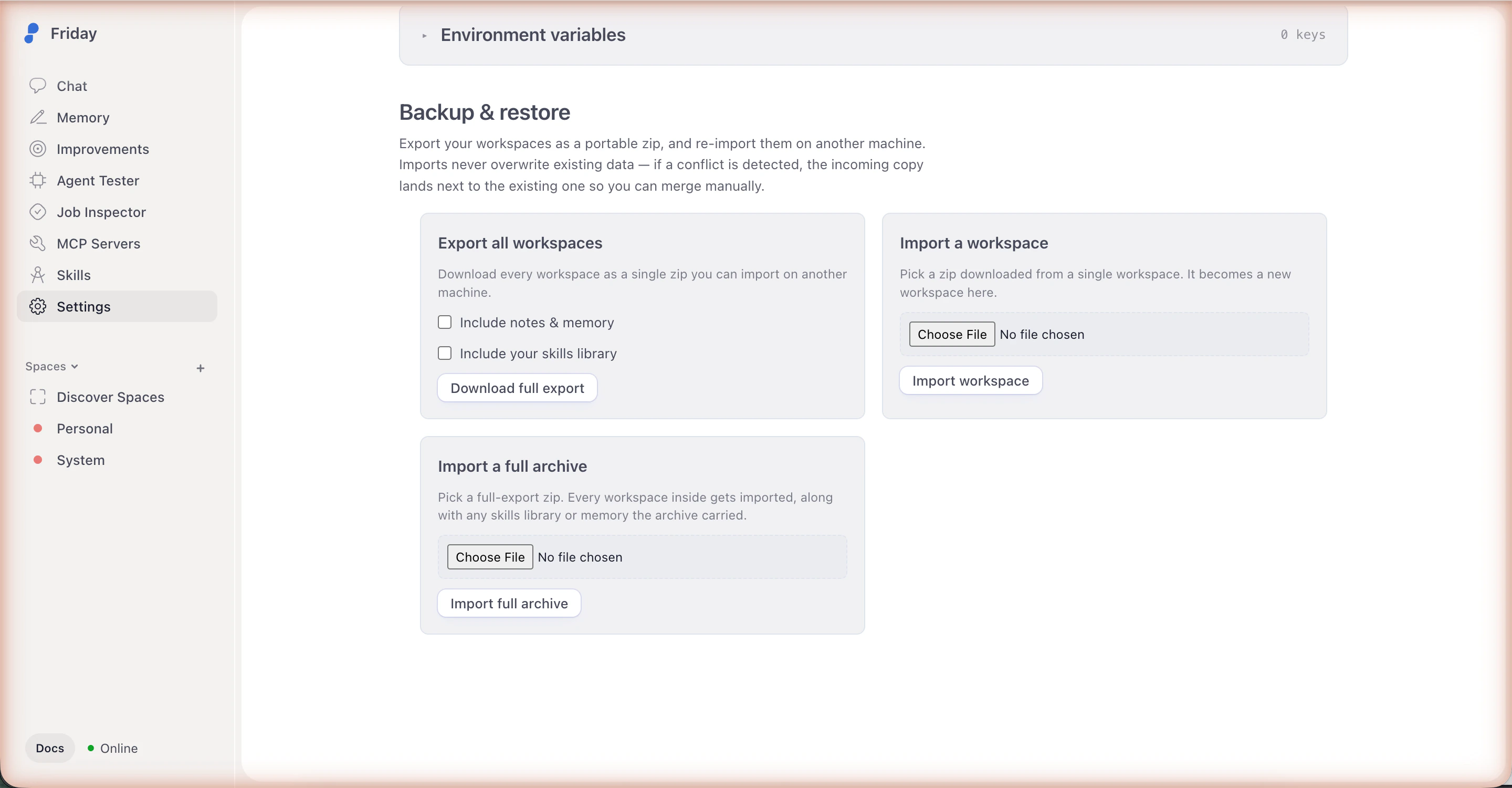
Import
The same Backup & restore section has two import options:- Import a space — a single-space zip
- Import a full archive — a full export zip; every space inside is imported
Programmatic access
Everything in the Studio is powered by the Friday daemon API. See the API reference and CLI reference for programmatic access.The
friday CLI ships at ~/.friday/local/bin/friday. Make sure that
directory is on your PATH — see the CLI setup
guide.