

Your first automation
Let’s start with something simple: a daily email digest of AI and startup news delivered to your inbox every morning.1
Describe what you want
Open Friday and describe your goal in plain language:
2
Answer clarifying questions
Friday will ask about missing details. For this automation, you might see:Friday: I’ll help you set up a daily AI and startup news digest. I have a few questions:
- What specific topics are you most interested in (funding rounds, product launches, acquisitions, research breakthroughs)?
- Would you prefer a brief summary or more detailed coverage?
3
Review the plan
Friday generates a detailed plan and confirms what you want to happen in your workspace:Friday: Here’s what I’ll set up for you:
- Schedule*: Daily at 9:00 AM PST*
- Research focus*: AI and startup news with emphasis on funding rounds and product launches*
- Delivery:Email to [email protected]
- Format*: Brief summaries with key highlights and sources*
4
Approve and deploy
Friday requires your express approval to continue. Once you confirm, Friday builds and deploys your automation:Friday: Your daily news digest is now running. The first email will arrive tomorrow morning at 10am PST. You can view execution history and modify the automation anytime.
Monitor and refine
When the automation runs the next morning, you’ll receive your email digest, which might look something like this: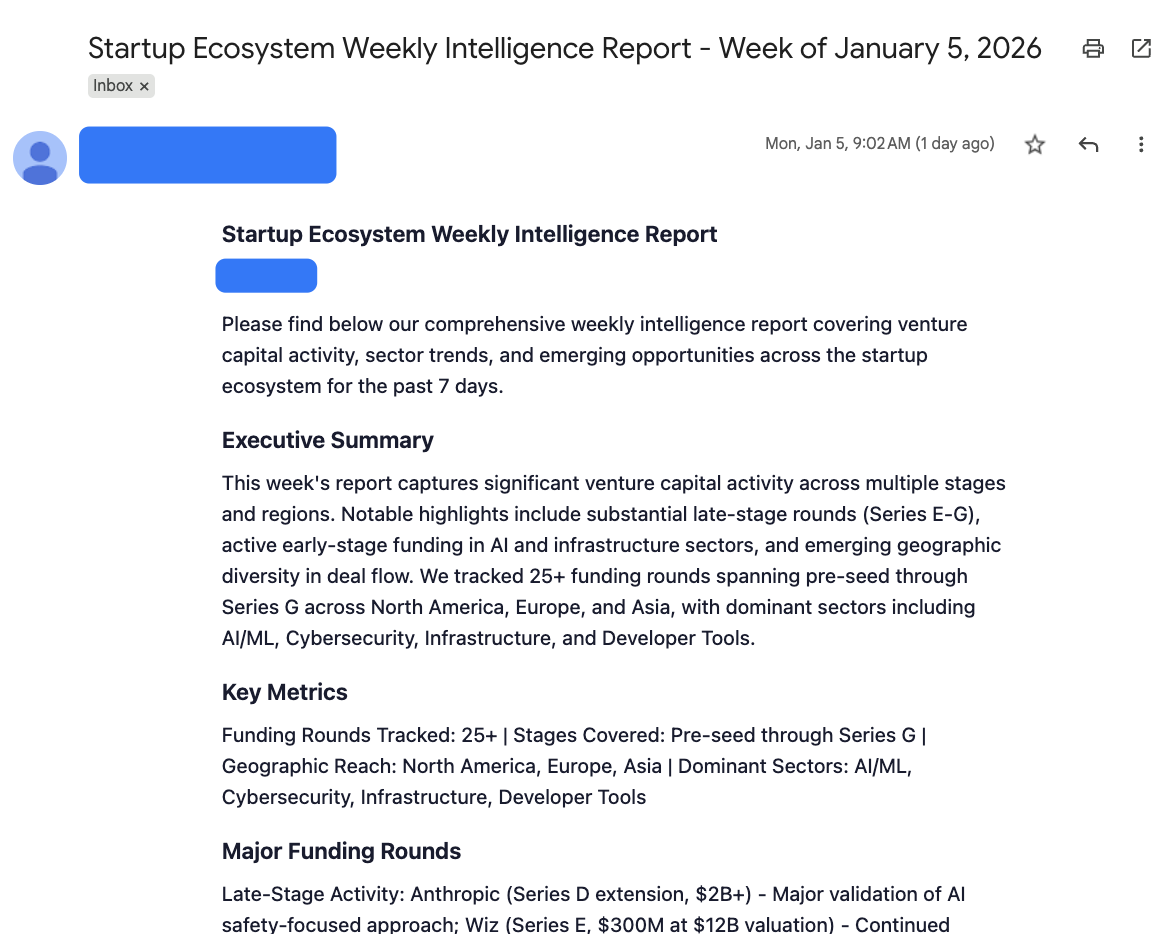
You can also review this specific workspace, its agents, and any associated sessions in the “Spaces” section of the lefthand bar of Friday.
Building more complex automations
Now that you’ve created a basic automation, let’s explore more sophisticated workflows.- Multi-step automations
- Multi-source analysis
- Coming soon! Conditional logic
Combine multiple actions into a single workflow:Friday will:
- Connect to your calendar
- Identify external meetings
- Research relevant people and companies
- Generate contextual briefings
- Deliver everything in one organized email
Common patterns
Monitoring and alerting
Pattern: “Monitor [source] every [frequency] and alert [destination] when [condition]” Examples:- “Monitor Hacker News for mentions of our company and send me an email when found”
- “Check our competitors’ pricing pages daily and notify Slack if anything changes”
- “Watch this Google Drive folder and alert me when new files are added”
Daily/weekly reporting
Pattern: “Every [frequency], analyze [source] and send [report type] to [destination]” Examples:- “Every Monday, summarize last week’s Slack messages in #sales and email the highlights to the sales team”
- “Daily at 8am, send me a list of today’s meetings with brief context on each attendee”
- “Weekly on Friday afternoon, compile advertising metrics and send a performance report to [email protected]”
Event-driven workflows
Pattern: “When [event happens], do [action]” Examples:- “When a new meeting transcript is uploaded to Google Drive, extract action items and post them to Slack”
- “When someone mentions our product on Twitter, analyze the sentiment and log it”
- “When a GitHub PR is merged to main, generate release notes and post to our changelog”
Tips for success
Be specific about destinations
Instead of: “Send results to Slack” or “Email the team”
Use: “Send results to Slack channel #engineering-alerts” and “Email to [email protected]”
Use: “Send results to Slack channel #engineering-alerts” and “Email to [email protected]”
Include time and date
Instead of: “Check regularly” or “Send it in the morning”
Use: “Check every 30 minutes”, “Run daily at 9am PST”, “Send it to me every Tuesday at 4pm CST”
Use: “Check every 30 minutes”, “Run daily at 9am PST”, “Send it to me every Tuesday at 4pm CST”
Specify criteria clearly
Instead of: “Alert me if it looks wrong”
Use: “Alert me if response time exceeds 2 seconds or error rate is above 1%”
Use: “Alert me if response time exceeds 2 seconds or error rate is above 1%”
Provide context when helpful
Instead of: “Analyze the feedback”
Use: “Analyze the feedback for feature requests, bugs, and user pain points”
Use: “Analyze the feedback for feature requests, bugs, and user pain points”
Understanding your automations
- Viewing execution history
- Making changes
- Testing before scheduling
Every automation maintains a complete execution log. You can see:
- When each run started and completed
- What data was processed
- Results that were generated
- Any errors or issues encountered