

The Studio is the primary visual interface for your Friday instance. It’s a local web dashboard where you manage spaces, view runs, edit configurations, and browse skills — all powered by yourDocumentation Index
Fetch the complete documentation index at: https://docs.hellofriday.ai/llms.txt
Use this file to discover all available pages before exploring further.
workspace.yml files.
Access
Open http://localhost:15200 in your browser after starting the platform. The sidebar health indicator (top right) shows connection status to the Friday daemon. A blue dot means connected; a red dot means the daemon is unreachable — click it for troubleshooting instructions.Spaces
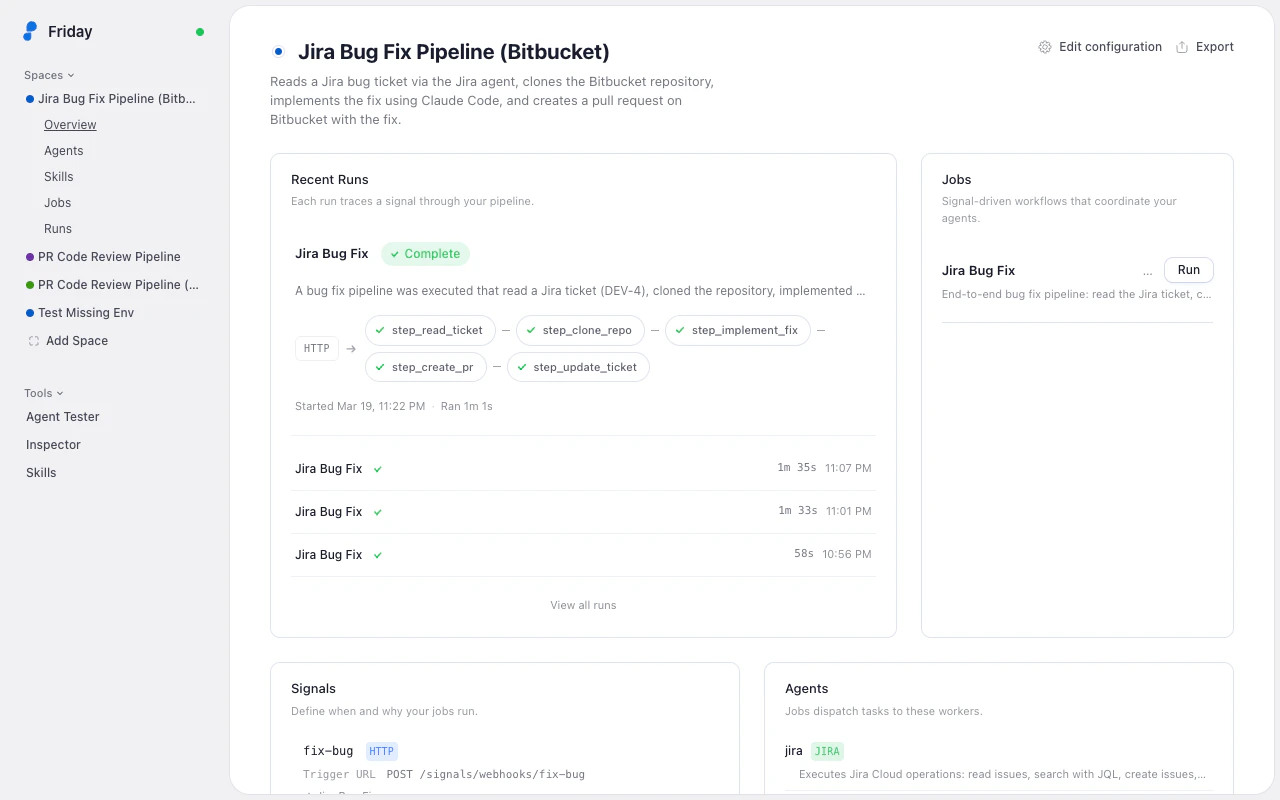
Space dashboard
When you select a space from the sidebar, the dashboard gives you an overview of everything in that space:- Recent runs — your latest execution with a progress bar showing pipeline state, plus a compact list of older runs. Click any run to see full details.
- Jobs and integrations — all configured jobs with their triggers. Click Run on any job to start it.
- Signals — every signal in your space with its type (webhook, schedule, etc.), linked jobs, and endpoint URLs or cron schedules.
- Agents — all agents configured for this space with their type and configuration summary.
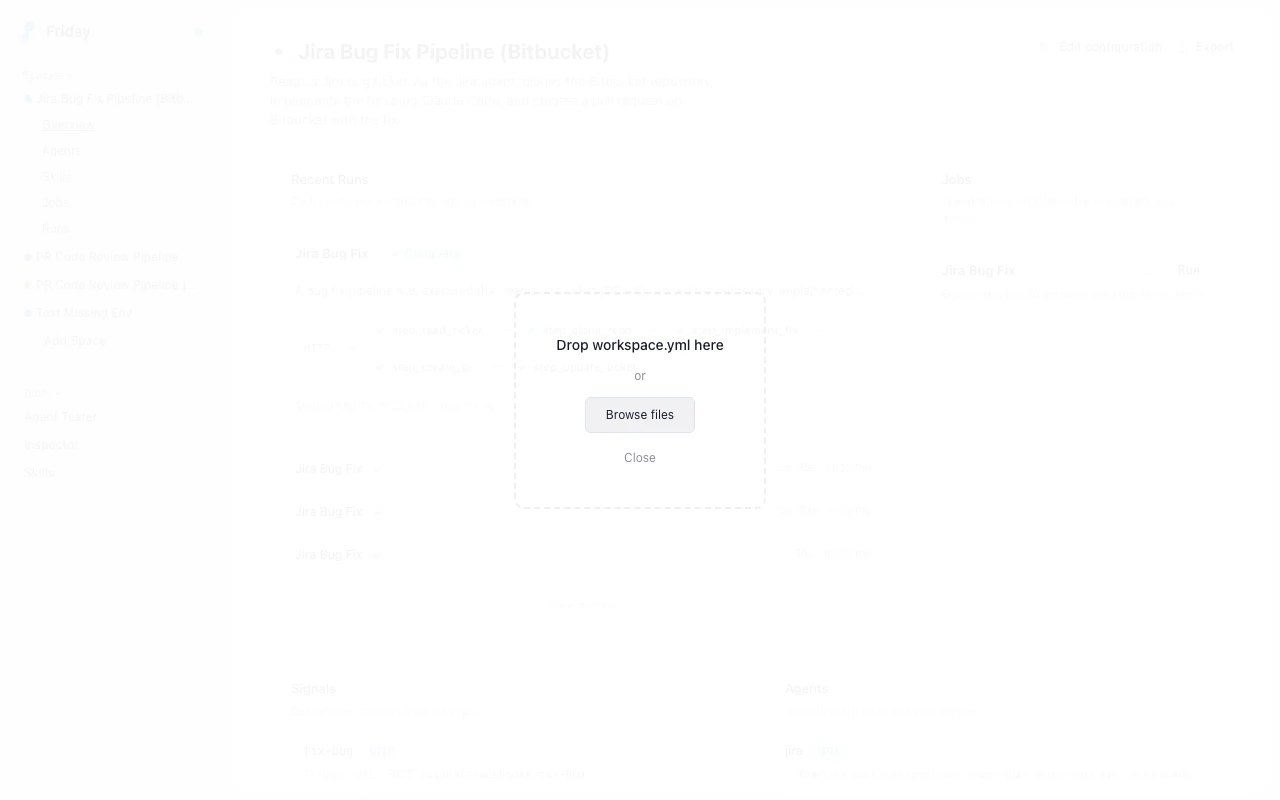
Add a space
Click Add Space in the sidebar. Drag and drop aworkspace.yml onto the drop zone, or browse to select one.
Edit configuration
Click Edit configuration from any space dashboard to open a full-page YAML editor with syntax highlighting and error reporting. Changes save back to the daemon when you press Cmd+S (Ctrl+S on Windows/Linux) or click Save. The editor tracks unsaved changes and warns you before navigating away.Runs and executions
Run list
Each space has a Runs page in the sidebar showing all executions in chronological order. Active runs appear at the top with a spinner.Run detail
Click any run to see its full execution trace:- Header — job name, status badge (active, completed, or failed), duration, and an AI-generated summary when available
- Timeline — agent step cards, each showing status, duration, and expandable input/output data. Click a step to expand it and see tool calls, artifacts, and logs.
- Sidebar — job metadata, signal that triggered the run, agent and step counts, and AI-extracted key details with clickable links
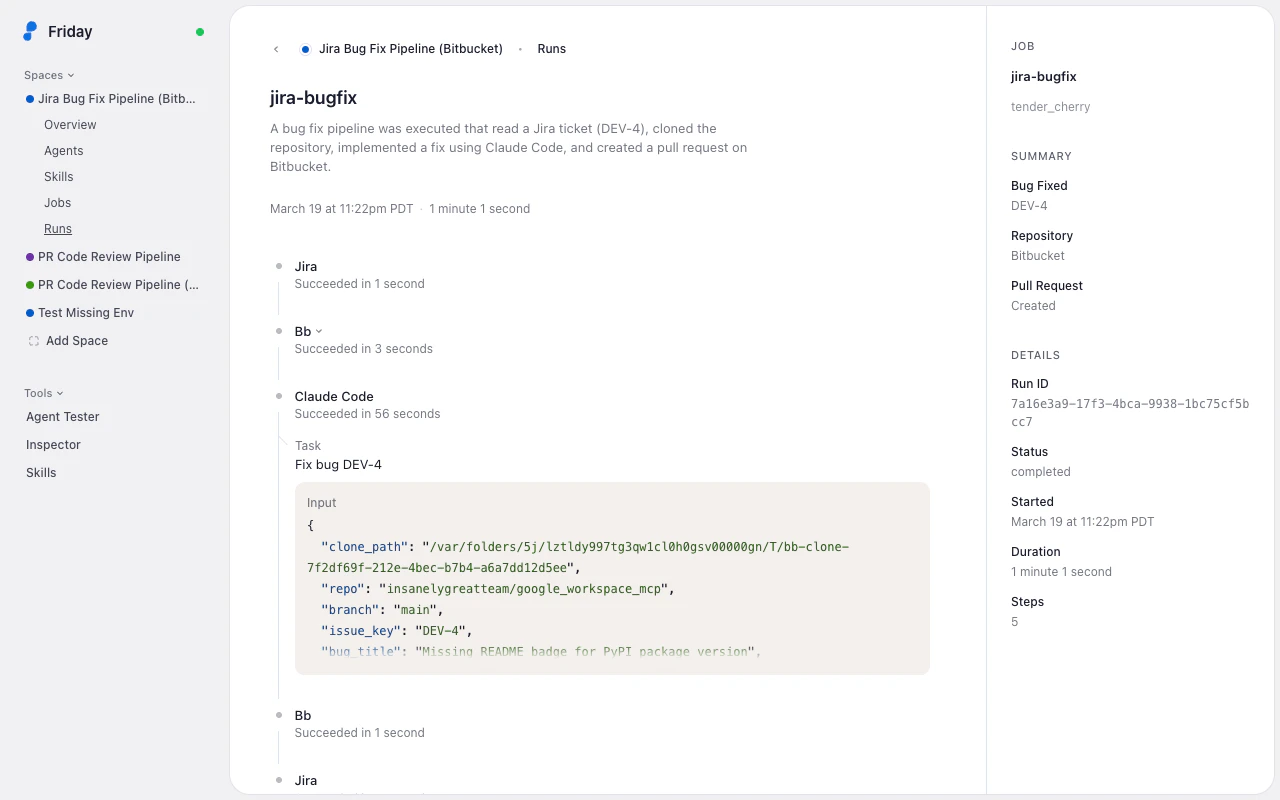
#block-step_id in the URL.
Jobs and signals
Trigger a job
Navigate to a space’s Jobs page to see all configured jobs. Each job card shows its pipeline diagram, description, triggers, and agent roles. Click Run to start it — the dialog prompts you for the required input fields based on the signal’s JSON schema.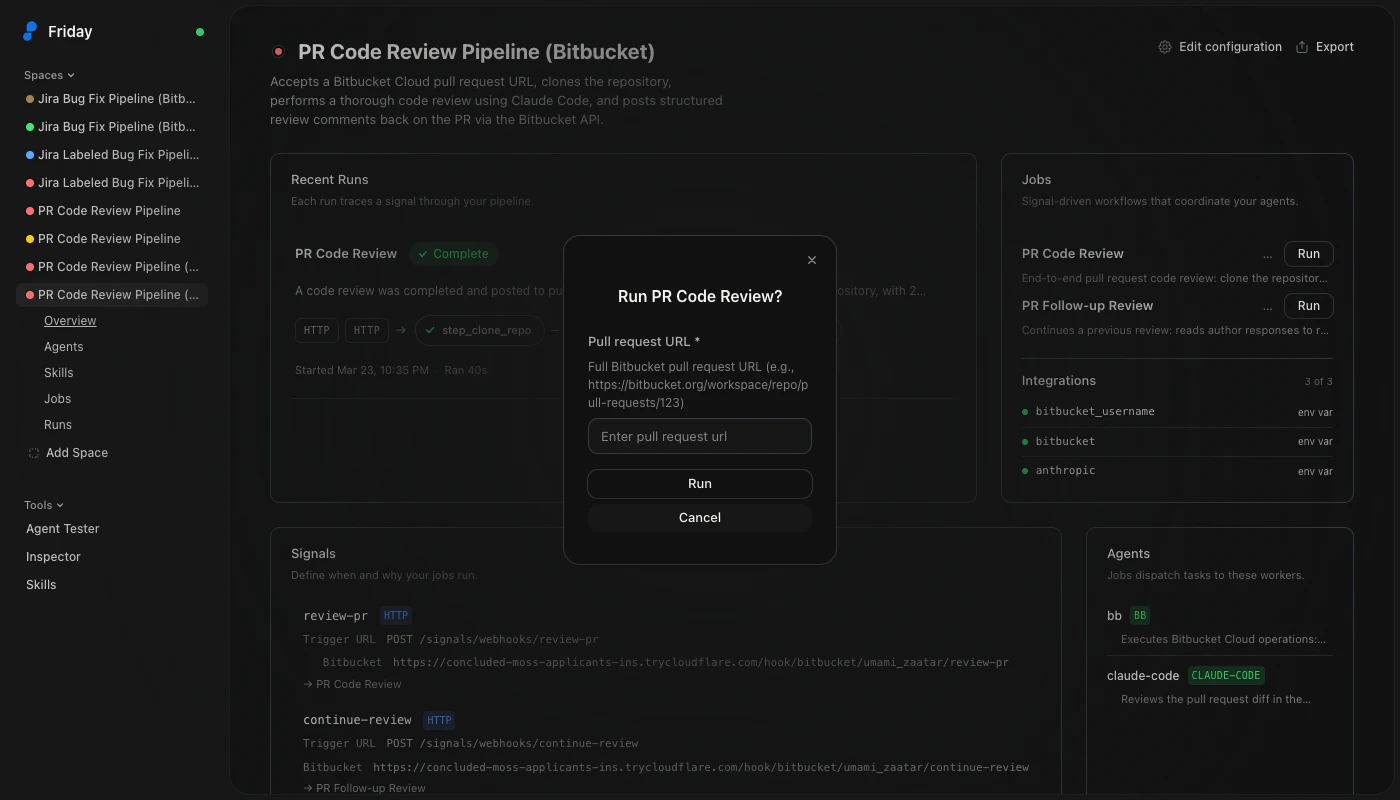
Signal details
Click any signal in the dashboard to see its configuration. HTTP signals show the full webhook URL for your configured providers (GitHub, Bitbucket, Jira). The platform includes a webhook tunnel that creates a public URL via Cloudflare, so external services can reach your local instance.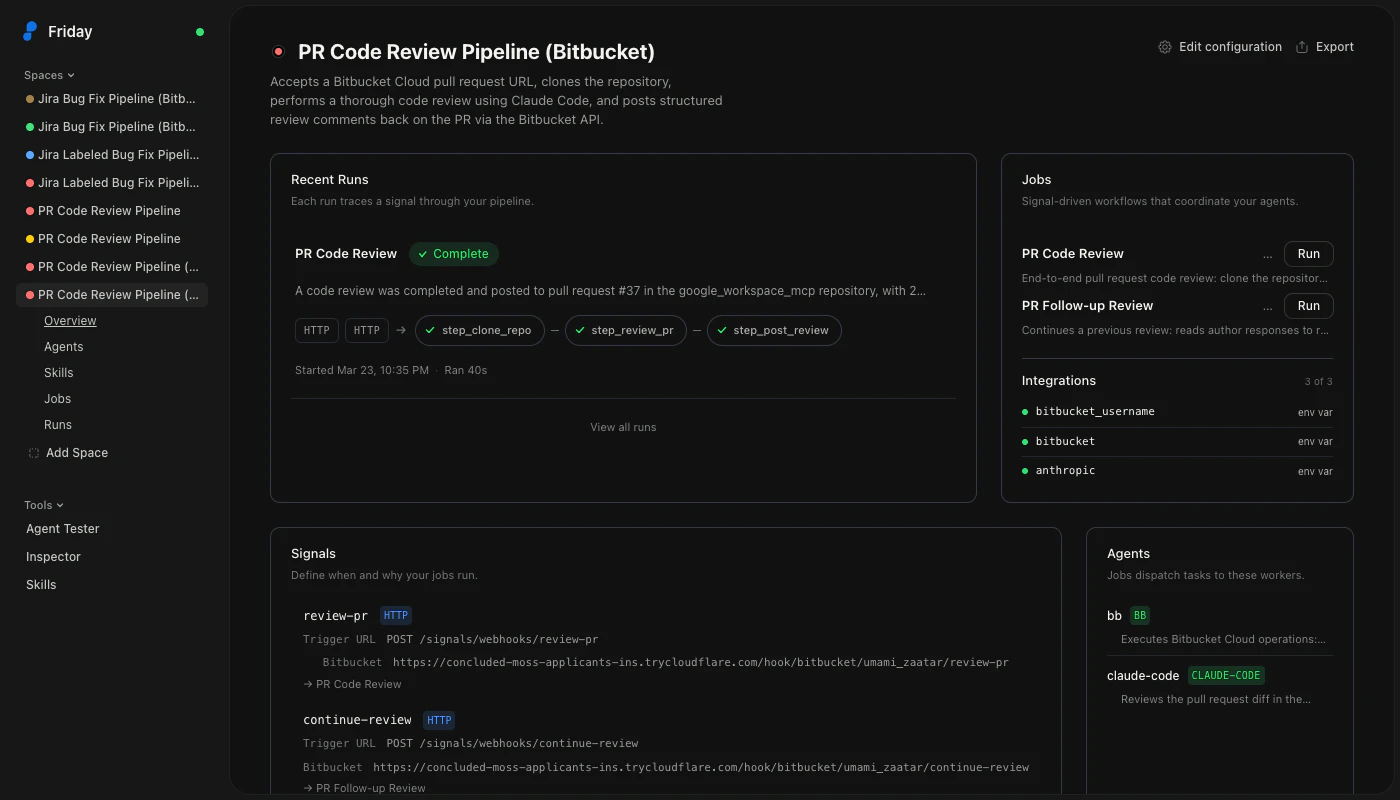
Skills browser
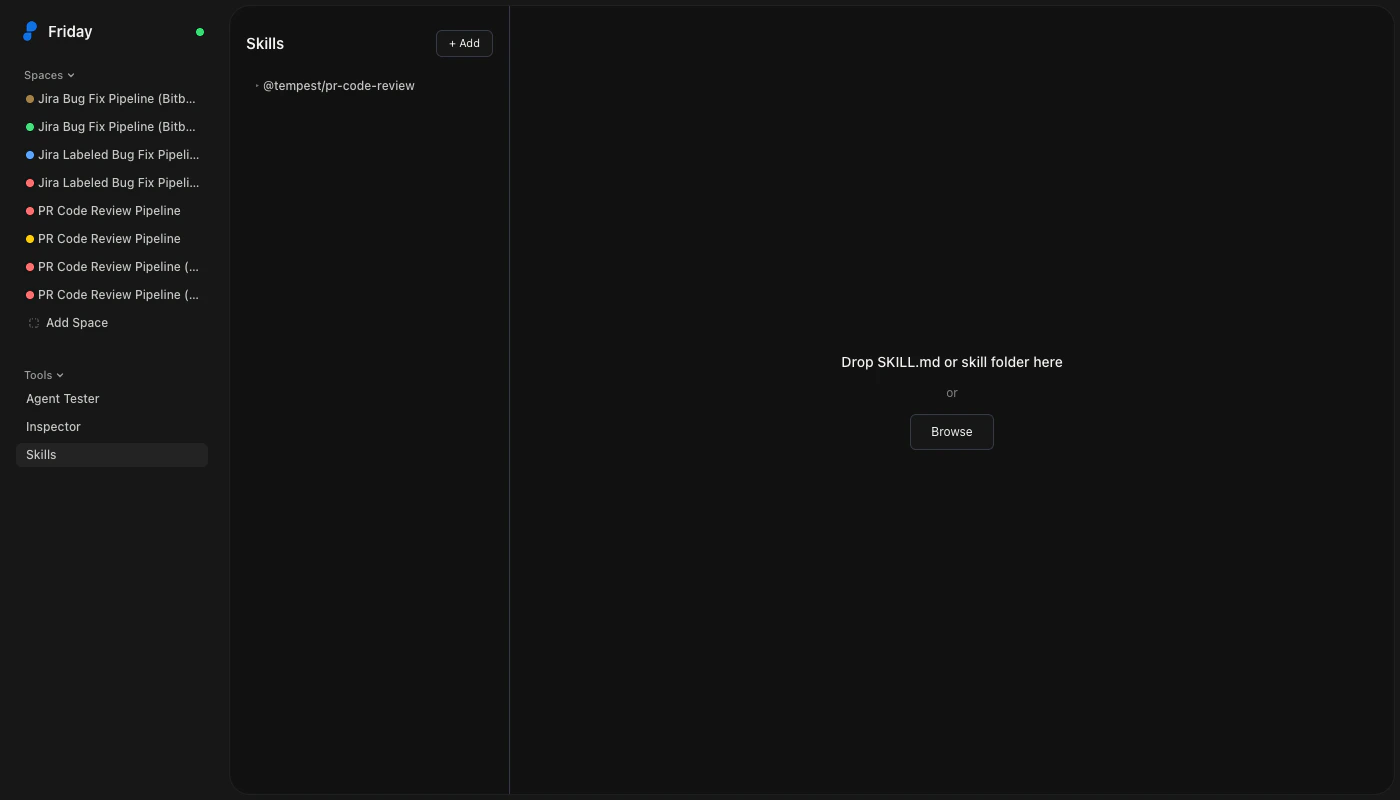
Browse, view, and edit published skills from the Tools section in the sidebar.- Skill browser — tree-structured navigation by namespace, with each skill showing its description and metadata
- Skill detail — full content, configuration schema, and version history
- Skill editor — edit skill content and publish new versions
- Skill loader — drag and drop a
skill/folder to publish a new skill
Backup and restore
Move a space between machines, share a working setup with a teammate, or keep a snapshot of your whole instance. The Studio packs spaces as portable zip bundles you can re-import anywhere another Friday daemon is running. Imports are non-destructive. If anything in the bundle would collide with what’s already on the target machine, the incoming copy lands next to the existing one (suffixed with a timestamp) so you can merge manually.Export a single space
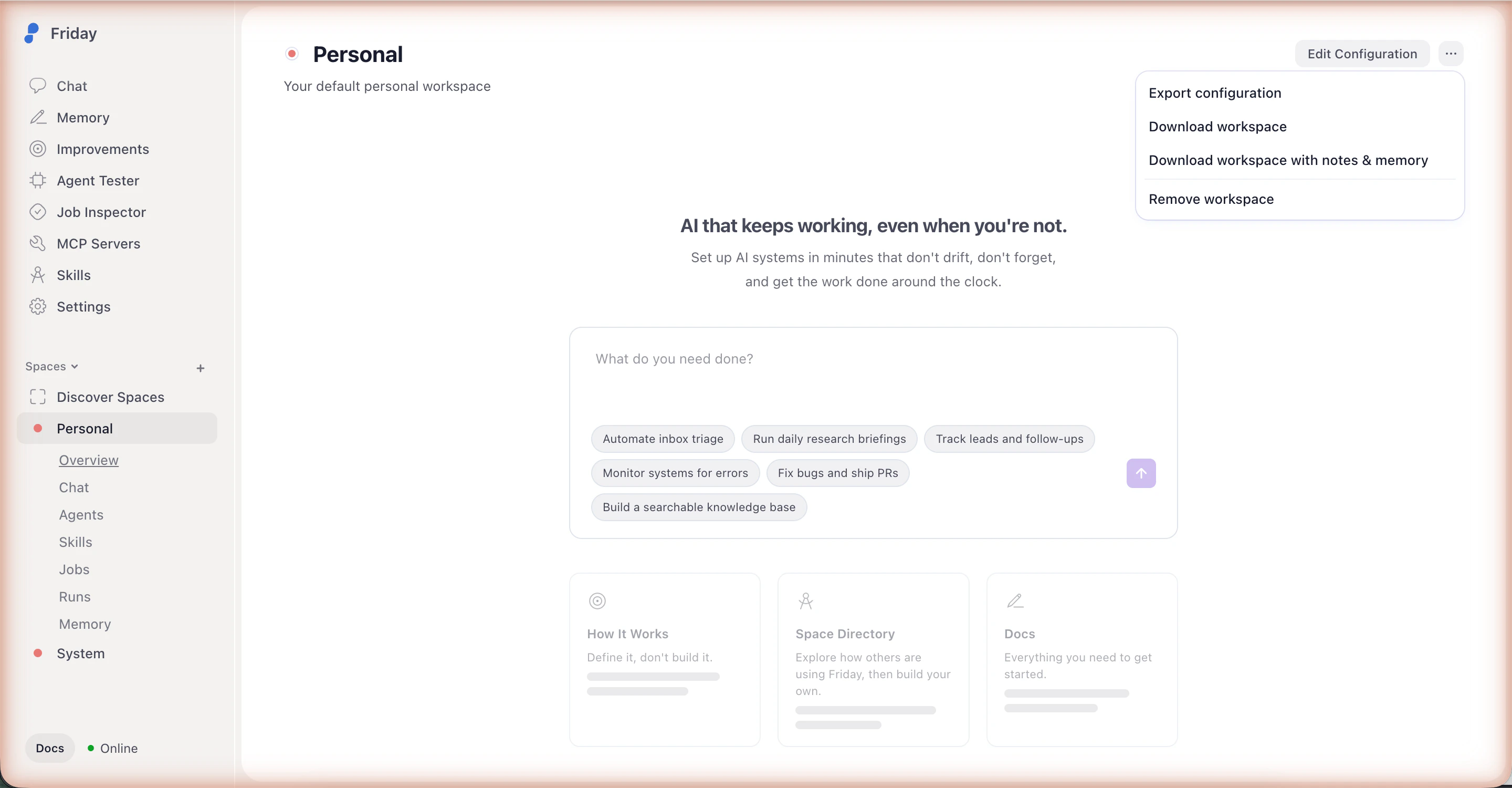
Open any space and click the kebab menu in the top-right of the dashboard. You get three export options:- Export configuration — just the
workspace.yml. Use this when you want to version-control or share the configuration without any runtime data. - Download workspace — a zip of the space’s configuration plus everything the daemon has accumulated for it (jobs, signals, skills attached to the space, run history). Memory is not included.
- Download workspace with notes & memory — same as above plus the space’s narrative memory. Use this when you’re moving the space to another machine and want it to carry its accumulated context.
Export your whole instance
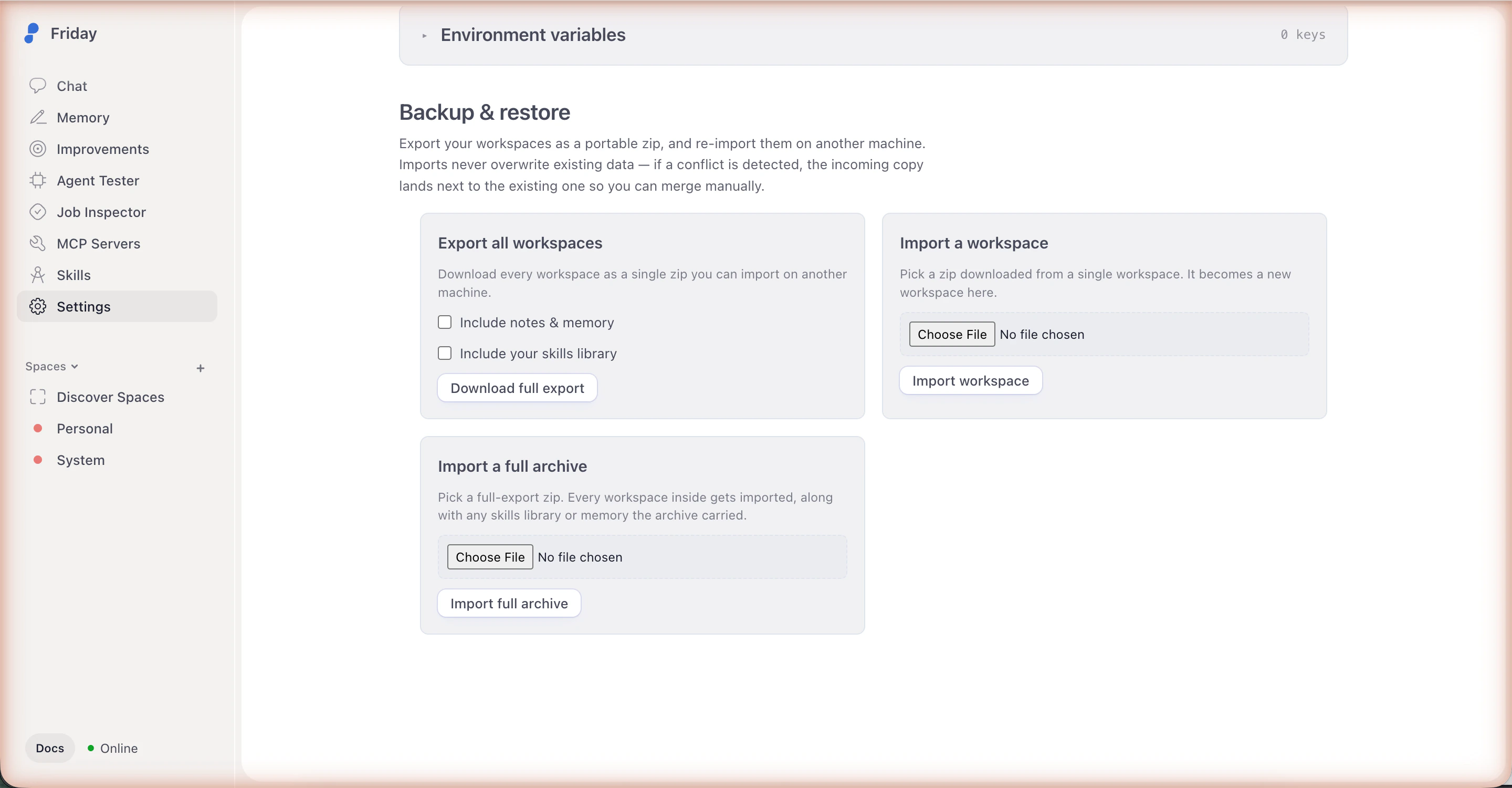
Open Settings and scroll to Backup & restore. The Export all workspaces card packs every space on this daemon into a single archive. Two toggles control what comes along:- Include notes & memory — bundles each space’s narrative memory alongside its config and runtime data.
- Include your skills library — bundles the global skills library (skills not attached to any one space).
Import on another machine
The same Backup & restore section has two import cards:- Import a workspace — pick a single-space zip (anything produced by Download workspace or Download workspace with notes & memory). It comes in as a new space on this daemon.
- Import a full archive — pick a zip produced by Download full export. Every space inside is imported, along with any narrative memory or skills library the archive carries. The result panel summarizes what was imported, what was sideloaded due to collisions, and any errors.
.imported-<timestamp> so you can review and merge by hand.
CLI cheatsheet
Press Shift+? anywhere in the Studio to open the CLI cheatsheet — a searchable command reference organized by category:- Sessions — list, inspect, and cancel runs
- Signals and jobs — list signals, trigger jobs with payloads
- Skills — list, get, publish, and version skills
- Agents — list and describe agents
- Workspaces — list, add, remove, and clean up spaces
- Chat and prompts — send prompts and view transcripts
- Logs — query and filter daemon logs
- Daemon — start, stop, restart, and check status
- Development — development-related utilities
Keyboard shortcuts
| Shortcut | Action |
|---|---|
| Shift+? | Toggle CLI cheatsheet |
| Cmd+K / Ctrl+K | Focus search (in agent catalog) |
| Cmd+Enter / Ctrl+Enter | Execute prompt (in agent workbench) |
| Cmd+S / Ctrl+S | Save configuration (in YAML editor) |
| Escape | Close detail panel (in inspector), close cheatsheet |
| Up/Down arrows | Navigate agent catalog, cycle prompt history |