> ## Documentation Index
> Fetch the complete documentation index at: https://docs.hellofriday.ai/llms.txt
> Use this file to discover all available pages before exploring further.
# Sharing Spaces
> Package a space for others — share the config, or hand off a full bundle with history and memory.
A space bundle is a single `.zip` containing the full configuration, run history, attached skills, and optionally the space's narrative memory. Hand it to a teammate or carry it to another machine — the recipient imports the `.zip` and the space lands ready to run.
## Export a space
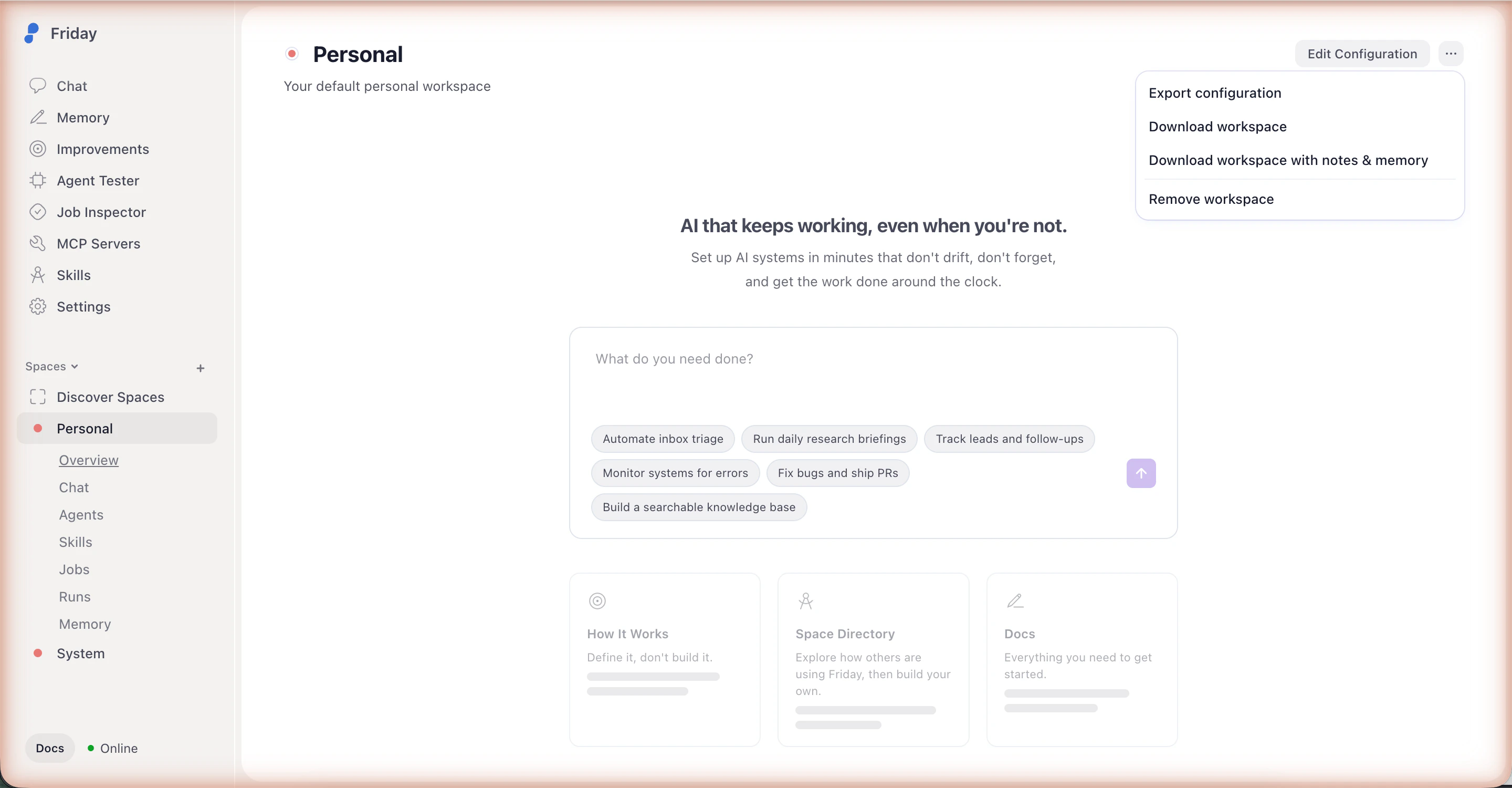
Click any space in the Studio sidebar to open it.
Click the **···** menu in the top right of the space.
Pick one of:
* **Download space** — configuration, run history, and attached skills. Memory not included.
* **Download space with notes & memory** — same as above, plus the space's narrative memory.
Friday writes a single `.zip` to your downloads folder. Hand it off
however you like — email, shared drive, chat, USB.
 Bundles include run history and (optionally) memory, which may contain
details from your previous sessions. Review the contents before sharing
outside your team.
Credentials never travel with the bundle — API keys and OAuth tokens are stored separately by the Link service. The recipient connects their own accounts after import. See [Security](/security) for how Friday handles secrets.
## Import a space
In the Studio sidebar, click **Settings**, then open the **Backup &
restore** section.
Click **Import a space** and select the `.zip` you received.
Open the imported space and follow its README — usually a short list of
services to sign in to (Google, Slack, etc.). Friday prompts for any
integrations the space uses.
Imports are non-destructive. If you already have a space with the same
name, Friday adds a timestamp suffix so you can merge manually.
## What's next
Full reference for export and import flows in the Studio.
What's in a space and how `workspace.yml` is structured.
Bundles include run history and (optionally) memory, which may contain
details from your previous sessions. Review the contents before sharing
outside your team.
Credentials never travel with the bundle — API keys and OAuth tokens are stored separately by the Link service. The recipient connects their own accounts after import. See [Security](/security) for how Friday handles secrets.
## Import a space
In the Studio sidebar, click **Settings**, then open the **Backup &
restore** section.
Click **Import a space** and select the `.zip` you received.
Open the imported space and follow its README — usually a short list of
services to sign in to (Google, Slack, etc.). Friday prompts for any
integrations the space uses.
Imports are non-destructive. If you already have a space with the same
name, Friday adds a timestamp suffix so you can merge manually.
## What's next
Full reference for export and import flows in the Studio.
What's in a space and how `workspace.yml` is structured.