> ## Documentation Index
> Fetch the complete documentation index at: https://docs.hellofriday.ai/llms.txt
> Use this file to discover all available pages before exploring further.
# Using Friday Studio
> Navigate the Studio UI — spaces, runs, jobs, skills, backup, and programmatic access.
The Studio is the primary visual interface for Friday Studio. Open it in your browser after launching the app.
## Access
Open [http://localhost:15200](http://localhost:15200) in your browser. The sidebar shows a green health dot when connected to the Friday daemon.
## Spaces
### Space dashboard
When you select a space from the sidebar, the dashboard shows two tabs: **Activity** and **Info**.
**Activity** shows your chat history for the space and recent job runs. Each run shows its status, what triggered it, a summary of what happened, and how long it took. A green dot indicates a run still in progress.
 **Info** shows the space's jobs, signals, agents, and communicators. Each job has a **Run** button to trigger it manually. Signals show their type (WEBHOOK or SCHEDULE) and the trigger URL or cron schedule. Agents are listed with their type, provider, model, and description. Communicators show which chat platforms are connected.

 Click **Edit Configuration** in the top right to open the YAML editor. The **···** menu lets you export the configuration, download the space as a bundle, or remove it — see [Backup and restore](#backup-and-restore).
### Add a space
Click **Discover Spaces** in the sidebar to browse and import starter spaces from the library. To load your own, click **+** and drop in a `workspace.yml` file.
### Edit configuration
Click **Edit Configuration** to open a full-page YAML editor with syntax highlighting. Press **Cmd+S** (**Ctrl+S** on Windows) or click **Save** to apply changes.
## Runs
### Run list
Click **Runs** in the sidebar for any space to see all executions. Each card shows the job name, status, a summary of what happened, and duration.
### Run detail
Click any run to open the full execution view — a vertical timeline of every agent that ran, with duration shown per step. Click any agent block to expand it and see the full input, output, and any tool calls it made. The right sidebar shows the run ID, status, start time, duration, and step count.
Click **Edit Configuration** in the top right to open the YAML editor. The **···** menu lets you export the configuration, download the space as a bundle, or remove it — see [Backup and restore](#backup-and-restore).
### Add a space
Click **Discover Spaces** in the sidebar to browse and import starter spaces from the library. To load your own, click **+** and drop in a `workspace.yml` file.
### Edit configuration
Click **Edit Configuration** to open a full-page YAML editor with syntax highlighting. Press **Cmd+S** (**Ctrl+S** on Windows) or click **Save** to apply changes.
## Runs
### Run list
Click **Runs** in the sidebar for any space to see all executions. Each card shows the job name, status, a summary of what happened, and duration.
### Run detail
Click any run to open the full execution view — a vertical timeline of every agent that ran, with duration shown per step. Click any agent block to expand it and see the full input, output, and any tool calls it made. The right sidebar shows the run ID, status, start time, duration, and step count.
 Runs stream in real time — you can watch each agent step execute as it happens.
## Jobs
The **Info** tab shows all jobs in the space. Each job card displays its description and a **Run** button. Click **Run** to trigger it — a dialog appears with any input fields defined by the signal's schema.
Runs stream in real time — you can watch each agent step execute as it happens.
## Jobs
The **Info** tab shows all jobs in the space. Each job card displays its description and a **Run** button. Click **Run** to trigger it — a dialog appears with any input fields defined by the signal's schema.
 The **···** menu on each job gives you:
* **Copy as cURL** — a ready-to-paste curl command to trigger the job
* **Copy CLI command** — the equivalent `friday signal trigger` command
* **Edit configuration** — jumps to the YAML editor at the relevant section
## Skills browser
Browse and manage published skills from **Skills** in the sidebar. The left panel shows skills organized by namespace. Click any skill to view its full content on the right. Drag and drop a `SKILL.md` or skill folder onto the upload zone to publish a new skill.
The **···** menu on each job gives you:
* **Copy as cURL** — a ready-to-paste curl command to trigger the job
* **Copy CLI command** — the equivalent `friday signal trigger` command
* **Edit configuration** — jumps to the YAML editor at the relevant section
## Skills browser
Browse and manage published skills from **Skills** in the sidebar. The left panel shows skills organized by namespace. Click any skill to view its full content on the right. Drag and drop a `SKILL.md` or skill folder onto the upload zone to publish a new skill.
 ## Backup and restore
The Studio packs spaces as portable zip bundles you can re-import on any machine running Friday. Imports are non-destructive — collisions are suffixed with a timestamp so you can merge manually.
### Export a single space
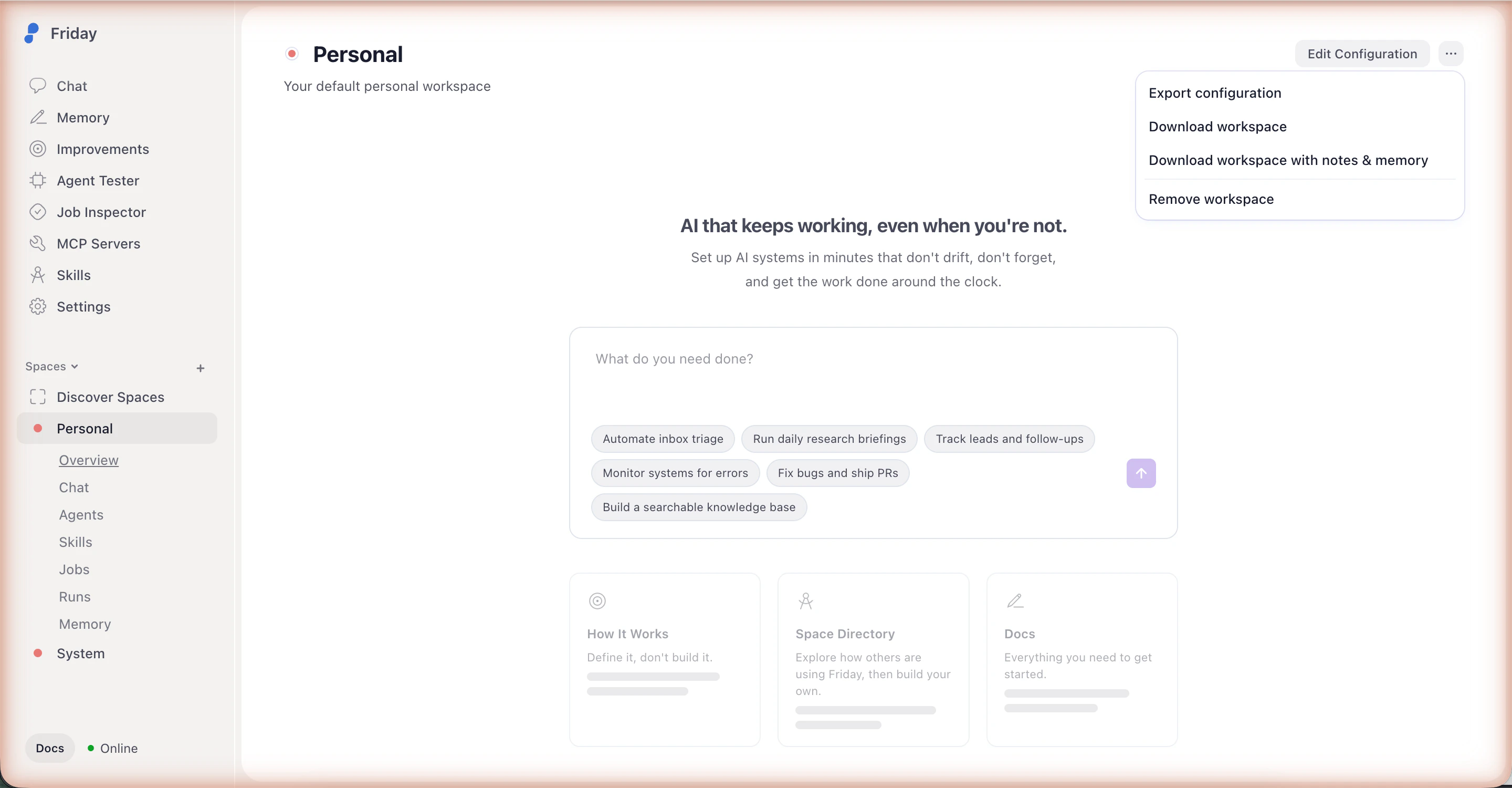
Open any space and click the **···** menu in the top right:
* **Export configuration** — just the `workspace.yml`
* **Download space** — configuration plus run history and attached skills. Memory not included.
* **Download space with notes & memory** — same, plus the space's narrative memory
## Backup and restore
The Studio packs spaces as portable zip bundles you can re-import on any machine running Friday. Imports are non-destructive — collisions are suffixed with a timestamp so you can merge manually.
### Export a single space
Open any space and click the **···** menu in the top right:
* **Export configuration** — just the `workspace.yml`
* **Download space** — configuration plus run history and attached skills. Memory not included.
* **Download space with notes & memory** — same, plus the space's narrative memory
 ### Export your whole instance
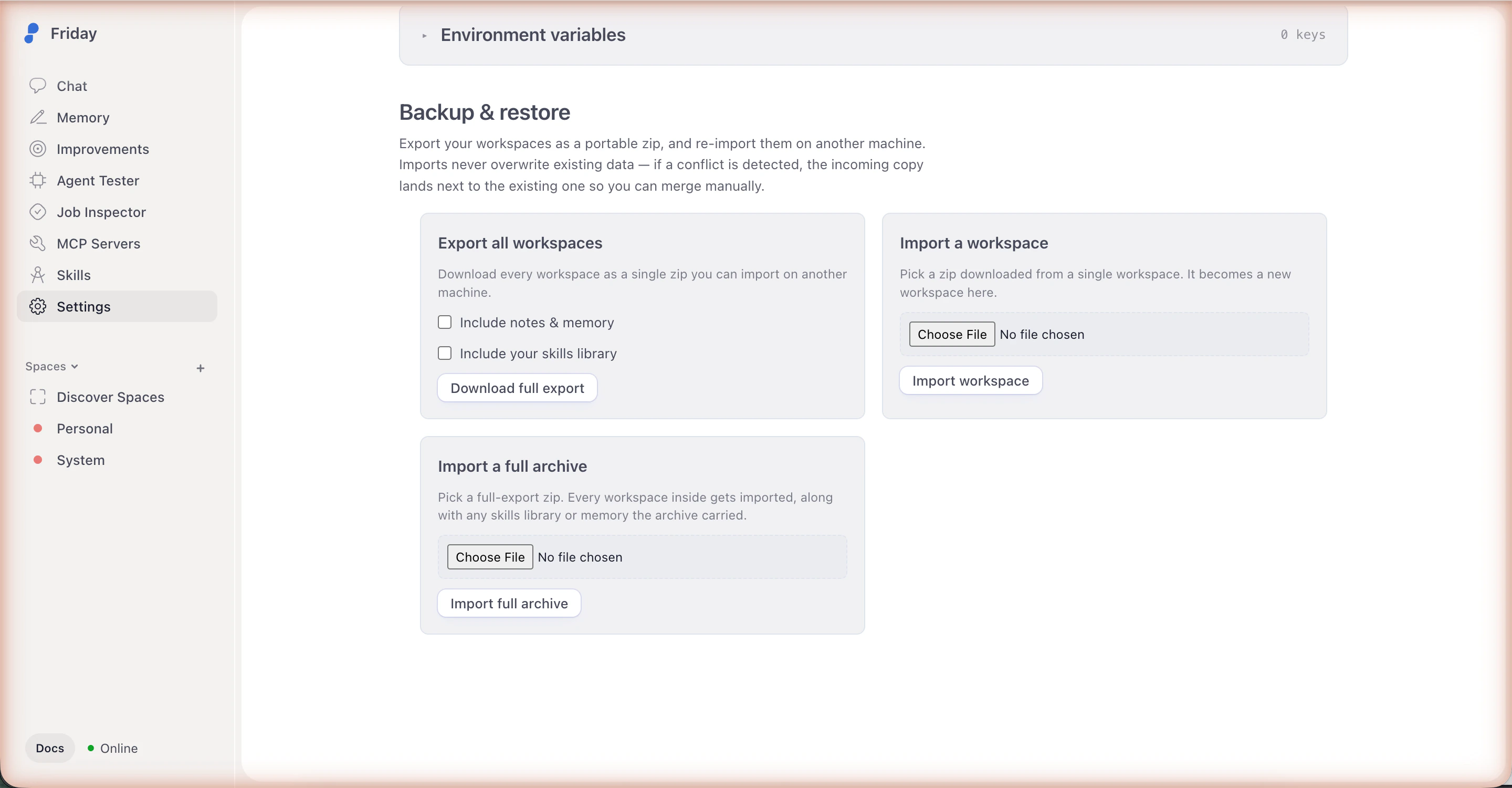
Open **Settings** → **Backup & restore** → **Download full export** to pack every space into a single archive. Toggles let you include notes & memory and the global skills library.
### Export your whole instance
Open **Settings** → **Backup & restore** → **Download full export** to pack every space into a single archive. Toggles let you include notes & memory and the global skills library.
 ### Import
The same **Backup & restore** section has two import options:
* **Import a space** — a single-space zip
* **Import a full archive** — a full export zip; every space inside is imported
## Programmatic access
Everything in the Studio is powered by the [Friday daemon API](/api-reference/introduction). See the [API reference](/api-reference/introduction) and [CLI reference](/reference/cli) for programmatic access.
The `friday` CLI ships at `~/.friday/local/bin/friday`. Make sure that
directory is on your PATH — see the [CLI setup
guide](/reference/cli#setup).
### Import
The same **Backup & restore** section has two import options:
* **Import a space** — a single-space zip
* **Import a full archive** — a full export zip; every space inside is imported
## Programmatic access
Everything in the Studio is powered by the [Friday daemon API](/api-reference/introduction). See the [API reference](/api-reference/introduction) and [CLI reference](/reference/cli) for programmatic access.
The `friday` CLI ships at `~/.friday/local/bin/friday`. Make sure that
directory is on your PATH — see the [CLI setup
guide](/reference/cli#setup).